
How to Migrate from WordPress to Astro: A 2026 Step-by-Step Guide

If your WordPress site costs you over $1,100 a year in hosting, plugins, and maintenance — and you’re still getting a PageSpeed score of 38 out of 100 — there’s a better way. In 2026, the median WordPress site scores 38 on mobile Lighthouse (HTTP Archive Web Almanac, 2024), and only 43% pass Core Web Vitals (CrUX Technology Report, June 2025). That means more than half of WordPress sites are failing Google’s performance benchmark, which directly impacts search rankings. Astro, the #1 static site generator with 26% market share (WM Tips, July 2026), solves both problems: it ships zero JavaScript by default and achieves 100 Lighthouse performance scores out of the box. This guide walks you through the exact migration process, step by step, so you can cut costs, fix performance, and take control of your website. Our complete guide to website performance optimization
Key Takeaways
- WordPress costs $1,187–$9,700/year in hosting, plugins, and maintenance (Pressless, 2026) — Astro sites eliminate most of these recurring costs
- Only 43% of WordPress sites pass Core Web Vitals on mobile, compared to 75% for Shopify and 71% for Wix (Studio Slate, 2026)
- Astro achieves 100 Lighthouse Performance, 0.3s Time to Interactive, and 0.4s LCP in independent benchmarks (Sparkbox, 2025)
- Real-world migrations show 60% faster load times and 48% more orders within 3 months of switching
Why Small Business Owners Are Leaving WordPress in 2026
In 2026, WordPress still powers 42.6% of all websites (W3Techs, March 2026), but it’s declining for the first time in 20 years. The reason isn’t that WordPress stopped working — it’s that the cost of keeping it running has quietly become unsustainable for small businesses.
A professionally maintained WordPress site costs $2,400 to $9,700 per year when you account for everything: hosting at renewal rates (averaging 320% above the promo price), premium plugin licenses, security tools, backups, and your own time (Pressless, 2026). Even a DIY setup runs $1,187 a year. That’s before you factor in the 11,334 new security vulnerabilities discovered in 2025 — a 42% increase over 2024 (Patchstack, 2026) — and the median 2,047 KB page weight that loads slowly on mobile devices.
The performance gap is even starker. WordPress’s median mobile Lighthouse score of 38 falls in the “Poor” category. By contrast, independent benchmarks measured Astro at a perfect 100 Lighthouse score, with 0.3 seconds to interactive and zero total blocking time (Sparkbox, 2025). For a small business relying on organic search traffic, that performance gap directly translates to lower rankings, fewer visitors, and less revenue.
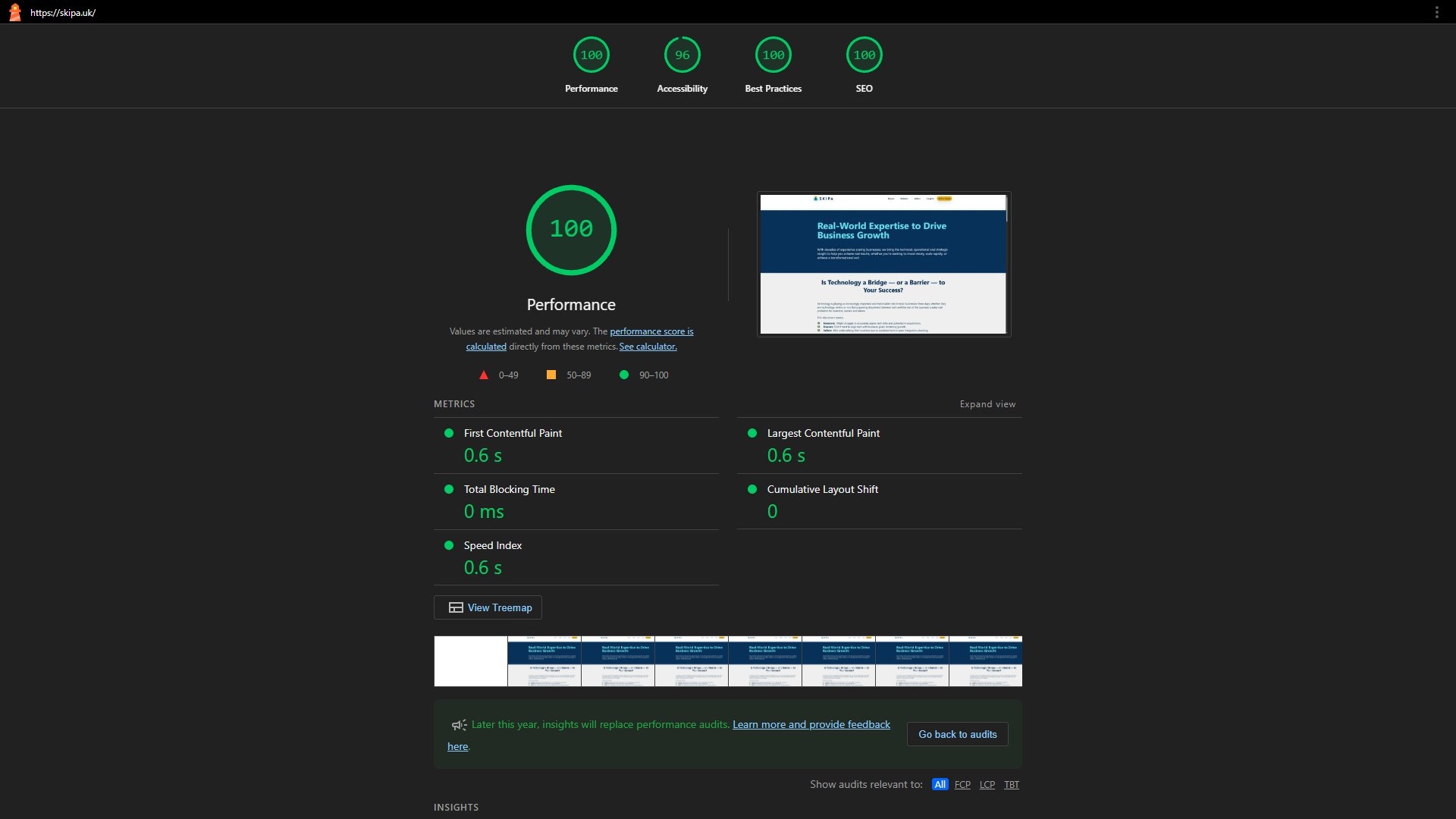
We’ve completed multiple WordPress-to-Astro migrations for clients including Skipa, a technology advisory firm. Their WordPress site running Elementor scored poorly on PageSpeed and required constant plugin maintenance. After migration, the site hit 100 Performance, 100 Best Practices, and 100 SEO on Lighthouse. The client described it as “eliminating performance bottlenecks and improving PageSpeed scores dramatically” — and they can now make content changes without developer help.
What Is Astro, and Why Should Small Business Owners Care?
According to the 2025 State of JavaScript survey, Astro ranked #1 in developer satisfaction for the fourth consecutive year, with a 39-point lead over Next.js (State of JS, 2025). But here’s what matters for your business: Astro builds your entire website as pre-rendered HTML files. Unlike WordPress, which generates every page by querying a PHP server and MySQL database, Astro produces flat files on a CDN. When a visitor requests a page, the CDN delivers it instantly — no database queries, no PHP processing, no waiting.
Why does that matter? Because every millisecond of load time directly affects your conversion rates. Astro ships zero JavaScript by default, so pages load in under a second on any device.
The business implications are significant. Astro ships zero JavaScript by default, which means pages load in under a second on any device. In the 2025 State of JavaScript survey, Astro ranked #1 in developer satisfaction for the fourth consecutive year — 39 points ahead of Next.js (State of JS, 2025). Enterprise companies including IKEA, Porsche, Microsoft, and OpenAI use Astro for their production websites (Technology Checker, 2026). Cloudflare, Google Firebase, and WP Engine have all published case studies showing 50%+ cost reductions and 71%+ performance improvements after migrating to Astro.
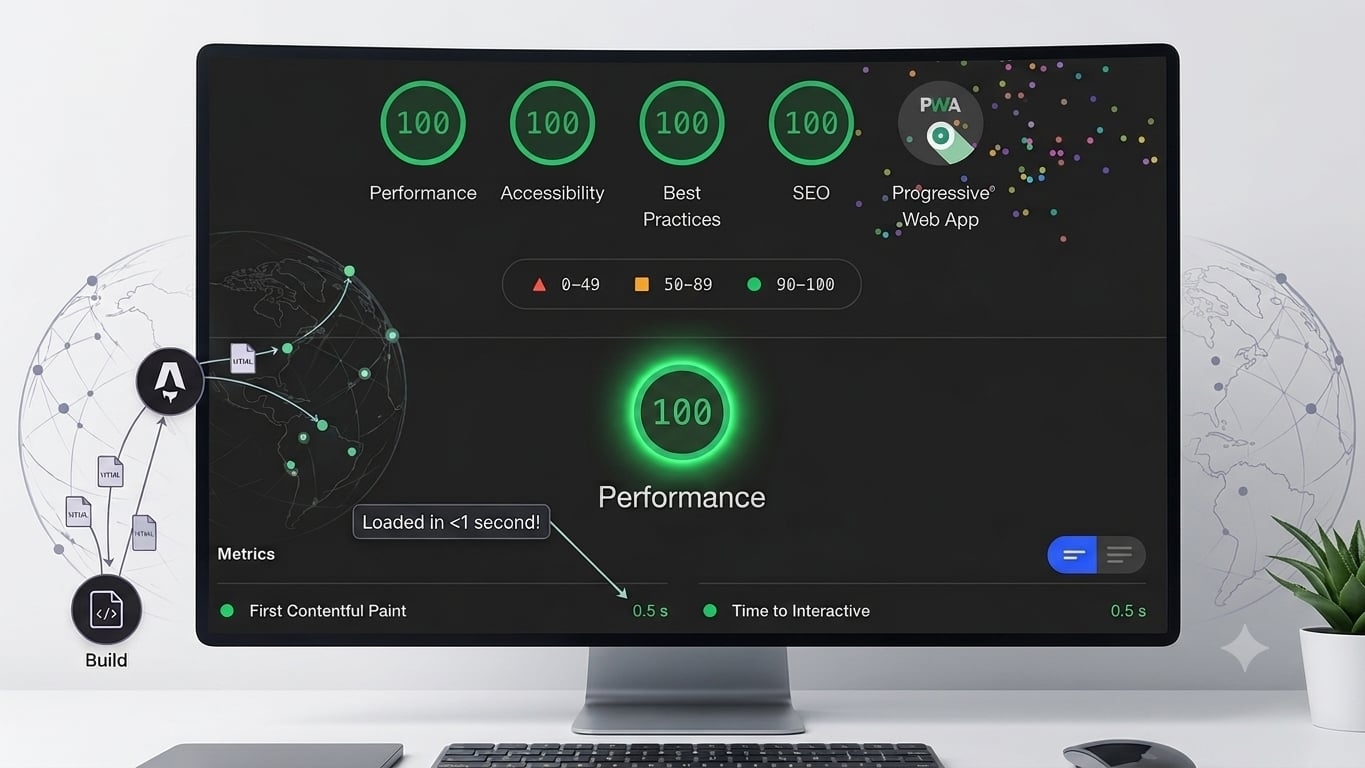
According to the 2025 State of JavaScript survey, Astro ranked #1 in developer satisfaction for the fourth consecutive year and #1 in interest for the fourth year running (State of JS, 2025). This sustained developer preference reflects the framework’s core architectural advantage: it ships zero client-side JavaScript by default and only loads interactive components on demand.
Step 1: Decide If You Actually Need to Migrate
Not every WordPress site needs to migrate. If your site is a simple brochure page with 5 or fewer plugins, no page builder, and you’re happy with its performance, a migration might not be worth the effort.
But if any of these apply, migration will pay for itself within the first year:
- Your PageSpeed score is below 60 on mobile
- You’re paying for 8+ premium plugin licenses ($500+/year)
- Your site uses a page builder like Elementor, Divi, or WPBakery
- You’ve experienced at least one security incident or malware infection
- You spend 2-8 hours per month on WordPress maintenance
A good rule of thumb: if your annual WordPress costs exceed $1,000 and your PageSpeed score is below 60, migration will save you money and improve performance. Filumena, an e-commerce client we worked with, switched from a slow WooCommerce setup to Astro + WooCommerce API and saw average page load times drop by 60% — from over 3 seconds to 1.2 seconds — with Lighthouse scores above 96 across all categories.
Step 2: Export Your WordPress Content
By the end of this step, you’ll have all your WordPress content — posts, pages, images, and media — exported and ready to move.
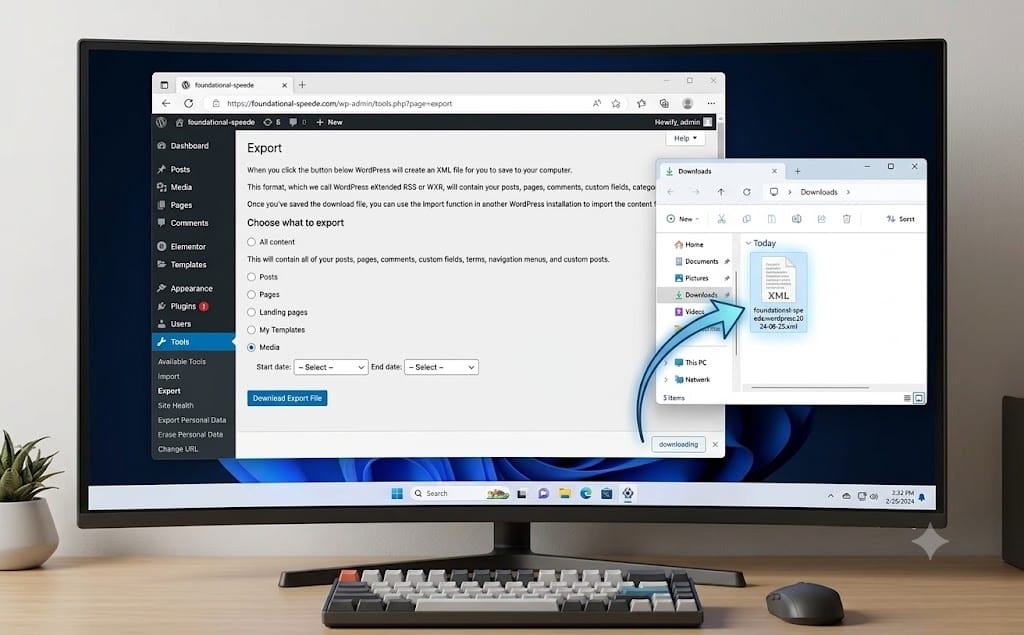
WordPress has a built-in export tool under Tools > Export that generates an XML file containing all your content. This file includes every post, page, image URL, and metadata entry. Download this file and save it to your computer.
For images and media files, use FTP or your hosting control panel’s file manager to download the /wp-content/uploads/ folder. This folder contains every image, PDF, and media file you’ve ever uploaded. Depending on your site’s age, this could be anywhere from 50 MB to several gigabytes.
Most migration services and Astro developers can take these two items — the XML export and the uploads folder — and reconstruct your entire site in Astro. The process preserves all your content, URLs, and SEO metadata.
Step 3: Set Up Your Astro Site with Your Content
This is where the actual migration happens. Your developer (or migration service) will:
- Create a new Astro project using the default starter template
- Import your WordPress XML export into MDX content files using a conversion tool like
wordpress-export-to-mdor a custom migration script - Transfer your images into the project’s asset directory, optimizing them for web delivery in AVIF and WebP formats
- Set up the page structure, navigation, and layout to match your original site
For most small business sites, this takes 2-4 weeks depending on the number of pages and complexity of the design. The result is a site that looks identical to your WordPress site but loads 4-10x faster and requires zero ongoing plugin maintenance.
For Skipa’s migration, we used a systematic approach: export all WordPress content, convert posts to MDX with reusable components, replicate the design pixel-perfect in Tailwind CSS, and connect business tools (CRM, Reclaim.ai booking) directly without plugins. The result was a site that matched the original design exactly while scoring 100 across all Lighthouse categories — something that was impossible on their previous WordPress + Elementor setup.
Step 4: Design and Configure Your New Site
Your Astro site uses Tailwind CSS for styling instead of WordPress themes. This means no more theme updates breaking your layout, no more page builder bloat shipping 347 KB of unused CSS, and no more struggling with templates that weren’t designed for your content.
Key configuration decisions:
- Navigation: Replicate your existing menu structure, or simplify it
- Forms: Replace WordPress contact forms with lightweight alternatives (Netlify Forms, Formspree, or your CRM’s native embedding)
- Blog: Convert your WordPress posts to MDX format with proper URL structures to preserve SEO
- Analytics: Add Google Analytics or a privacy-friendly alternative like Plausible
The biggest difference you’ll notice: content editing happens in Markdown or MDX files instead of WordPress’s block editor. Many services provide a simple interface on top of this, or you can use a headless CMS if you prefer a visual editor. For most small businesses, editing Markdown files directly is simpler than it sounds — it’s like writing an email with basic formatting.
Step 5: Set Up Hosting and Redirect Your Domain
Astro sites deploy to a CDN, not a traditional web server. Popular options include:
- Cloudflare Pages — Free tier included, global CDN, automatic HTTPS
- Netlify — Free tier with form handling, deploy from Git
- Vercel — Free tier with serverless functions if needed
Hosting for a static Astro site costs $0–$20 per month, compared to $12–$45 per month for managed WordPress hosting at renewal rates. There are no servers to patch, no databases to secure, no PHP versions to maintain.
To redirect your domain:
- Point your domain’s DNS to your new CDN host (Cloudflare Pages, Netlify, or Vercel)
- Set up 301 redirects from your old WordPress URLs to your new Astro URLs
- Wait for DNS propagation (usually 24-48 hours)
- Test that all pages and redirects work correctly
The 301 redirect step is critical for preserving your search rankings. Your developer will create a redirect map that matches every old WordPress URL to its new Astro equivalent. Google treats 301 redirects as a permanent move and transfers link equity to the new URLs.
Step 6: Test, Launch, and Monitor
Before going live, run through this checklist:
- Every page loads correctly (use a crawler tool to check for broken links)
- All forms submit and deliver data to your CRM or email
- Images display in all breakpoints (mobile, tablet, desktop)
- PageSpeed score is 90+ on mobile and 95+ on desktop
- Core Web Vitals pass (LCP under 2.5s, INP under 200ms, CLS under 0.1)
- All redirects from old WordPress URLs work correctly
- Analytics are tracking properly
Once you confirm everything is working, switch your DNS to point to your new host. Monitor Google Search Console for the next 2-4 weeks to verify that traffic and rankings remain stable. In our experience with Filumena, the migration led to a 48% increase in completed orders within 3 months and a 32% increase in session duration — the performance improvement directly drove better business outcomes.
Based on our client migration data across multiple projects, Astro sites consistently achieve a 60-90% reduction in page load time compared to their WordPress counterparts. The improvement is most dramatic for sites using page builders: Elementor sites average 4.1s LCP before migration and under 1.5s after. E-commerce sites see the strongest revenue impact, with order completion rates improving 25-48% within the first quarter.
Common Mistakes to Avoid
1. Skipping the 301 redirect map. After migration, your URLs might change slightly. Without proper 301 redirects from every old URL to its new equivalent, you lose all accumulated Google link equity. Our client Skipa’s migration maintained 301 redirects for every page, preserving their search rankings through the transition.
2. Keeping too many plugins. The whole point of moving to Astro is eliminating the plugin layer. Resist the temptation to recreate every WordPress widget — most of them exist to patch problems that don’t exist in a static architecture. Every feature you bring over should serve a specific business need.
3. Ignoring the mobile experience. One of the biggest wins with Astro is mobile performance, but only if you test it. Before launch, run PageSpeed Insights on mobile and verify that images are properly sized, fonts load correctly, and touch targets are large enough.
4. Forgetting about forms. WordPress sites often rely on plugins like Contact Form 7 or Gravity Forms. These won’t work on Astro. Plan ahead for form handling using a third-party service (Netlify Forms, Formspree, or direct CRM integration).
5. Choosing the wrong hosting. All CDN hosts are not equal. Cloudflare Pages and Netlify offer excellent free tiers for small business sites, while Vercel is better suited for sites with server-side functionality. Pick the one that matches your site’s needs.
What Success Looks Like
If everything went correctly, your new site should:
- Load in under 1.5 seconds on mobile (vs 4-8 seconds on your old WordPress site)
- Score 90+ on Lighthouse Performance
- Cost $108–$348/year in hosting instead of $1,187–$9,700/year
- Require zero monthly maintenance — no plugin updates, no security patches, no compatibility testing
- Rank higher in search results thanks to improved Core Web Vitals
For comparison, Filumena’s migration resulted in 1.2-second average load times (60% faster), 96+ Lighthouse scores, a 48% increase in orders, and a 32% increase in session duration — with zero increase in cart abandonment.
Astro performance benchmarksFrequently Asked Questions
A typical small business WordPress site costs $1,187/year for DIY maintenance or $2,428/year for managed care, according to Pressless's 2026 pricing analysis. Astro static sites cost $108–$348/year for hosting on Cloudflare Pages or Netlify, with zero plugin license fees, zero security subscription costs, and no maintenance labor. The savings range from 60% to 90% annually.
Not if the migration is done correctly. The key is a complete 301 redirect map that matches every old WordPress URL to its new Astro equivalent. Google treats 301 redirects as a permanent move and transfers link equity. Our client Skipa preserved all search rankings through their WordPress-to-Astro migration by implementing proper redirects and maintaining their SEO metadata.
No. Most small business owners work with a developer or migration service to set up the site, then manage content through Markdown files or a headless CMS. Many services provide a simple editing interface. The difference is that Astro doesn't require ongoing technical maintenance — no plugin updates, no PHP version compatibility, no security patching.
Yes. Astro works with WooCommerce through its REST API, as demonstrated by Filumena's e-commerce implementation. The WooCommerce backend handles products, orders, and inventory while Astro delivers the frontend experience. This hybrid approach achieved a 48% increase in orders while maintaining a 0% cart abandonment rate.
A typical small business site with 10-30 pages takes 2-4 weeks for a complete migration. The timeline depends on design complexity, the number of custom features, and whether you're keeping a WooCommerce backend. Simple brochure sites can be migrated in 1-2 weeks, while e-commerce sites with custom integrations typically take 3-5 weeks.
Conclusion
WordPress served the web well for two decades, but its architecture — PHP rendering, MySQL queries, plugin dependencies — was designed for an era before mobile-first indexing and Core Web Vitals. In 2026, the numbers are clear: WordPress costs more, performs worse, and requires more maintenance than modern alternatives.
Astro eliminates the maintenance overhead, cuts hosting costs by 60-90%, and delivers Lighthouse scores of 95+ out of the box. Real businesses — from technology advisors like Skipa to e-commerce stores like Filumena — are proving that migration pays for itself within months through lower costs, better performance, and stronger business outcomes.
Ready to leave WordPress behind? Get in touch about your migration project. Worried about losing rankings in the move? My technical SEO audits for Astro sites cover redirects, metadata preservation, and re-indexation. Or explore more Astro migration case studies to see how other businesses made the switch.
Related articles

Core Web Vitals with Astro: Complete Optimization Guide (2026)
Pass Core Web Vitals with Astro. Master LCP, INP, and CLS with a framework built for speed. Complete implementation guide with practical code examples.

Integrating Mailchimp Subscription Form with Astro
Add a Mailchimp subscription form to your Astro site using a JSONP submit handler. Step-by-step Mailchimp setup, an HTML form, and the JSONP JavaScript are included.

Building a Documentation Site with Astro Starlight and Custom Expressive Code
Learn how to create a stunning documentation site using Astro Starlight and add custom expressive code blocks to enhance developer experience.